🛠️ Setup Environment
We use Ubuntu by default, so every step below is based on Ubuntu.
Introduction
This section gives a quick overview of how to set up the development environment.
- Install Ubuntu OS – Prepare the base operating system for development.
- Install Docker – Run services and dependencies in containers.
- Install pre-commit – Run automated code checks before each commit.
- Install imotif-tools – Set up your GitHub SSH key, clone IMOTIF projects, run tests, and write commit messages in the team format.
- Install VS Code – The team's code editor.
- Configure VS Code – Import the team profile to sync settings and extensions.
Step 1: Install Ubuntu OS
Set up Ubuntu as the base operating system for your development environment. You can install it directly on your machine or run it in a virtual machine. Follow the official guide: Install Ubuntu Desktop →
Then install the base tools used in the next steps:
sudo apt update
sudo apt install -y git python3-pip
Step 2: Install Docker
Install Docker to get a consistent, isolated environment for development. Docker runs applications in containers, so you don't have to install their dependencies on your machine.
Follow the official guide: Install Docker Engine on Ubuntu →
Check that Docker is running:
docker --version
docker compose version
sudo systemctl status docker
(Optional) To run Docker without sudo, add your user to the docker group:
sudo usermod -aG docker $USER
newgrp docker
Step 3: Install pre-commit
pre-commit manages Git pre-commit hooks. It runs code checks (formatting, linting, security scans) before each commit to keep the code consistent.
pip3 install --break-system-packages pre-commit
Check the installation:
pre-commit --version
Step 4: Install imotif-tools
imotif-tools is the internal CLI for IMOTIF Odoo projects. It can:
- Set up an SSH key for GitHub (
init). - Clone an IMOTIF repository with a ready-to-use local Docker config (
clone). - Run Odoo addon unit tests in Docker, with a coverage report (
test). - Write commit messages in the team format
[TASK-123][TYPE] message(commit).
Requirements: Python 3.11+, Docker with Compose (from Step 2), Git, and read access to the private IMOTIF/imotif-tools repository.
4.1 Set up an SSH key for GitHub
Skip this if ssh -T git@github.com already greets you by your username.
ssh-keygen -t ed25519
cat ~/.ssh/id_ed25519.pub
Copy the public key and add it at GitHub → SSH keys →.
4.2 Install
pip3 install --break-system-packages git+ssh://git@github.com/IMOTIF/imotif-tools.git
Check the installation:
imotif-tools --version
imotif-tools --help
Create a fine-grained token with Contents: Read-only access to IMOTIF/imotif-tools, then install over HTTPS:
export GITHUB_TOKEN=<your-token>
pip3 install --break-system-packages "git+https://${GITHUB_TOKEN}@github.com/IMOTIF/imotif-tools.git"
Keep the token out of your shell history and out of requirements.txt files.
4.3 Quick start
imotif-tools clone ibase     # clone IMOTIF/ibase and create local config files
cd ibase
docker compose -f docker-compose.local.yml up
Odoo runs at http://localhost:8069.
4.4 Upgrade
imotif-tools --upgrade
Step 5: Install VS Code
Download and install: VS Code →
Step 6: Configure VS Code
-
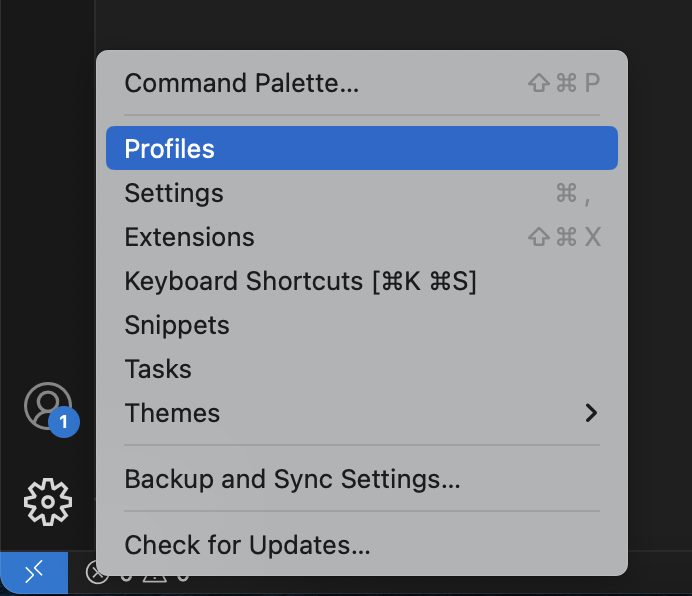
Open the Profiles menu
-
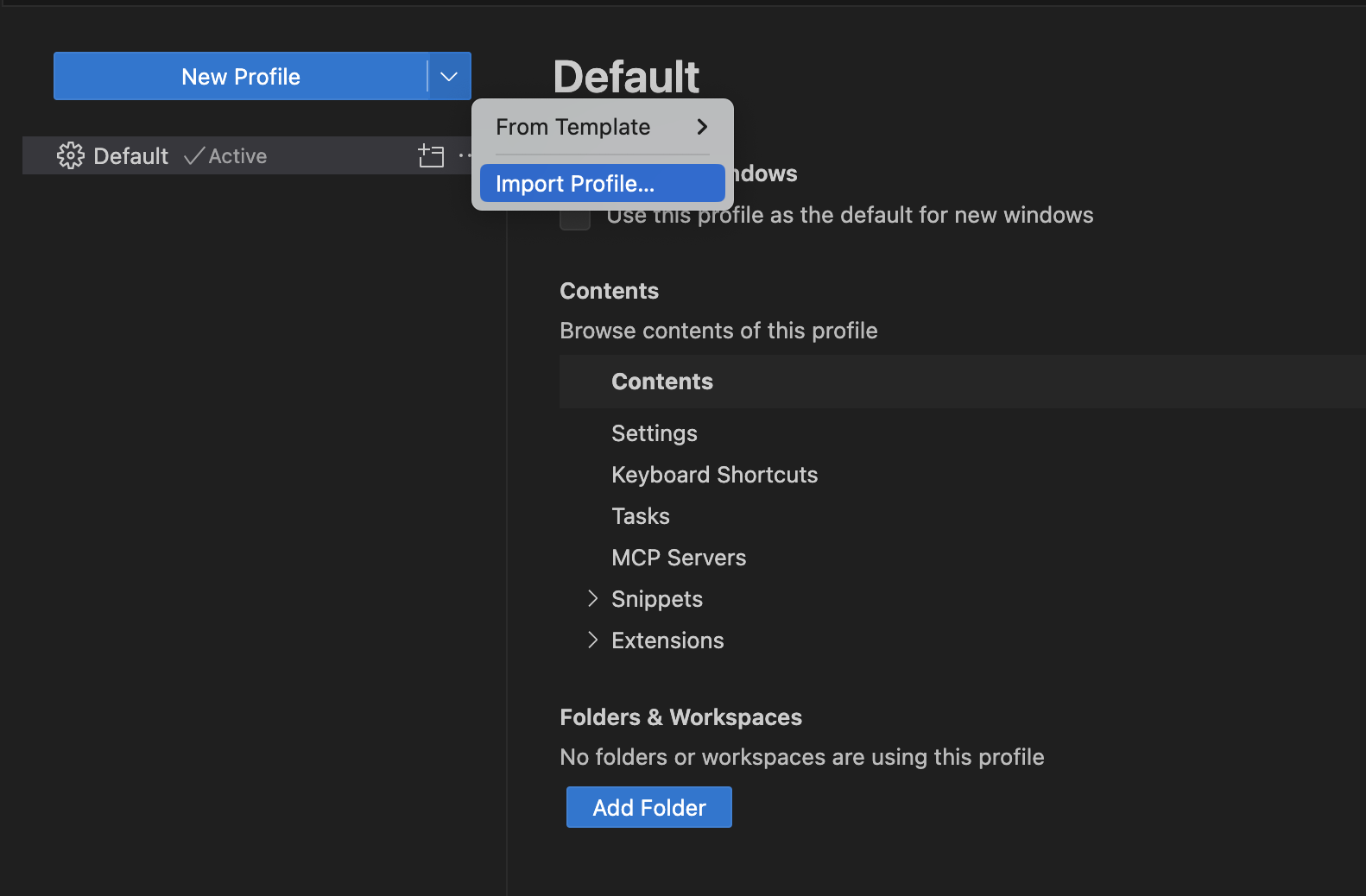
Select “Import Profile”
-
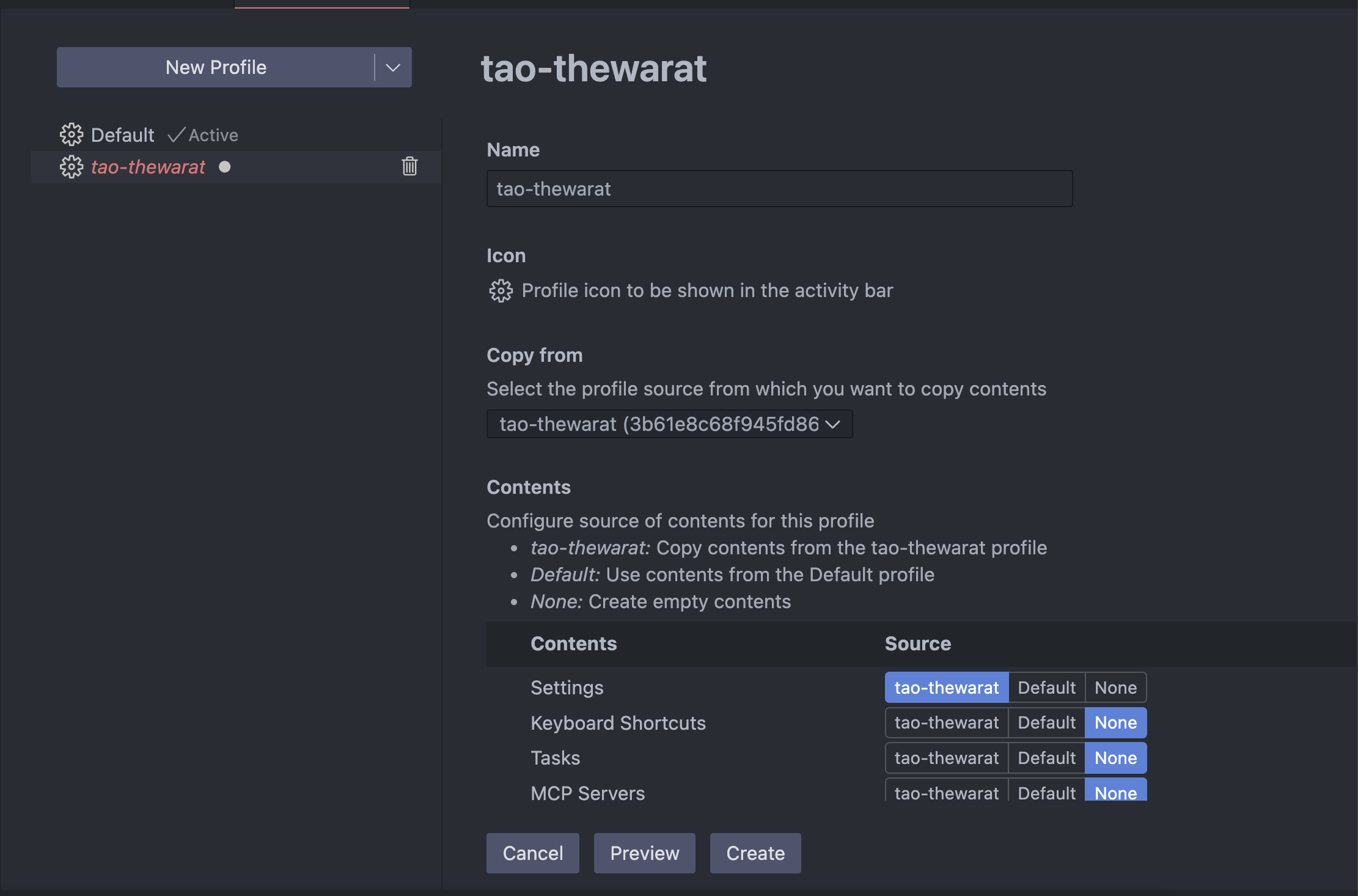
Paste the profile link below
https://vscode.dev/profile/github/3b61e8c68f945fd86c3d931e94e28d23
-
Click “Create” to finish the import