Odoo Sandbox
Odoo Sandbox gives you a temporary Odoo instance with your addon installed.
You do not need a local development environment.
Open it at sandbox.iaaaiksu.com.
Do not put real customer data in a sandbox. Every sandbox uses the same login, and every signed-in user can see and open every sandbox.
Step 1: Sign In
-
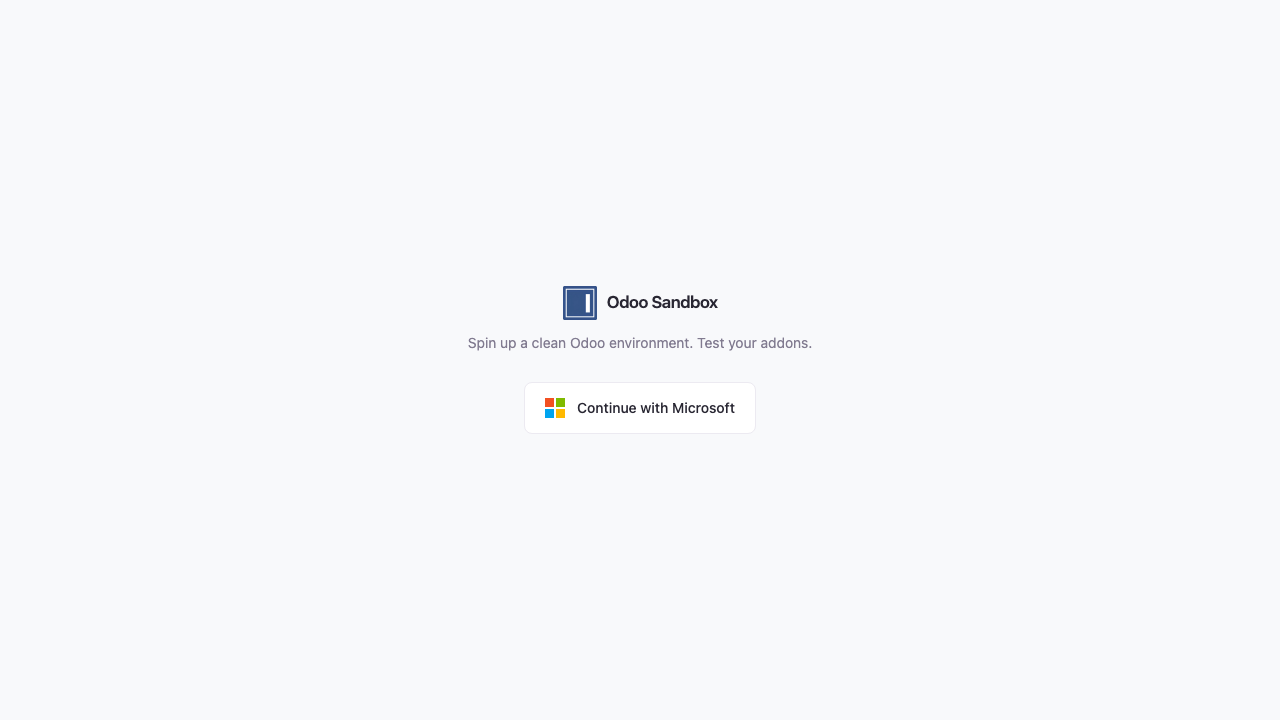
Open sandbox.iaaaiksu.com.
-
Click Continue with Microsoft.
-
Choose your IMOTIF Microsoft account.
-
If Microsoft asks for permission the first time, review the request and accept it.
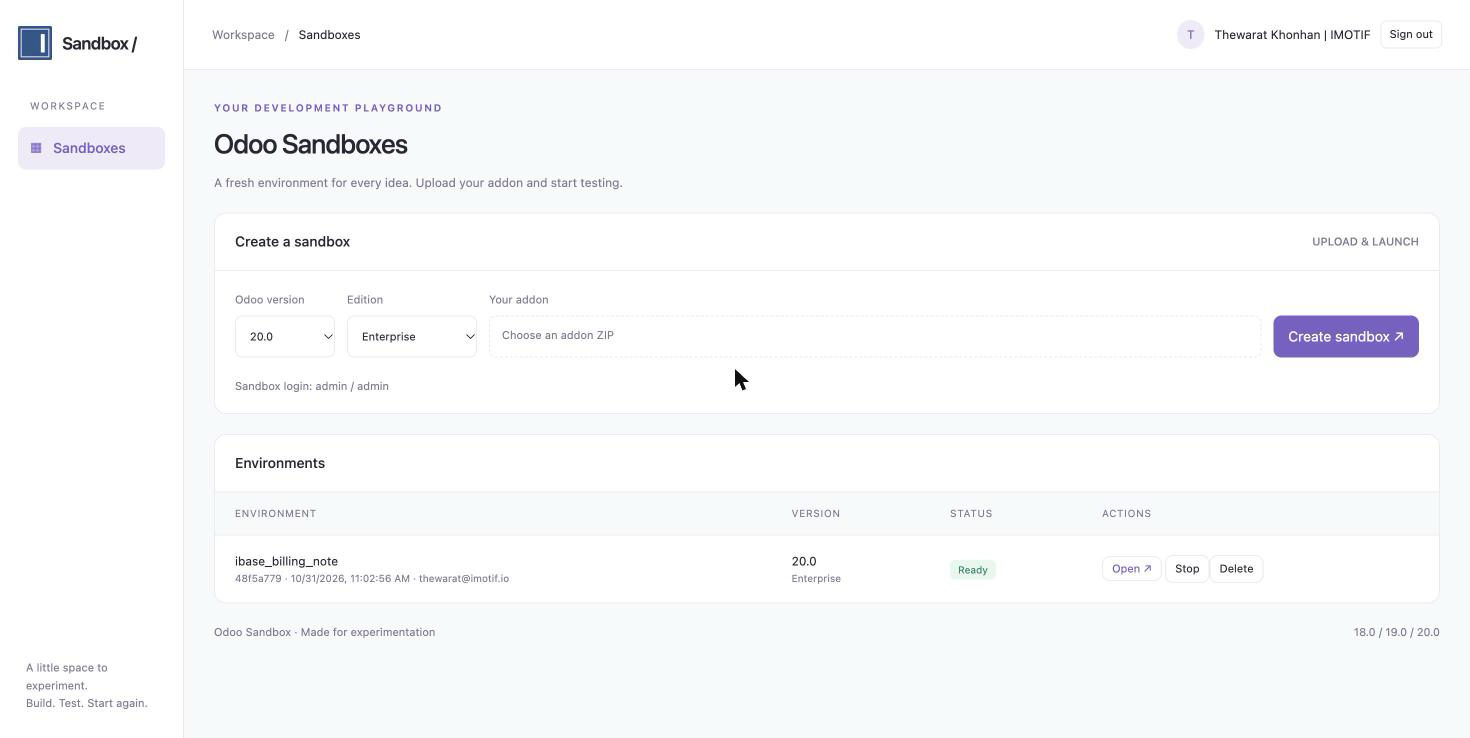
The workspace opens after you sign in.
Step 2: Prepare Your Addon ZIP
Create a ZIP file that contains your addon folder:
my_addon.zip
└── my_addon/
    ├── __init__.py
    └── __manifest__.py
- The ZIP can contain more than one addon. Each addon needs its own folder.
- A full manifest version, such as
20.0.1.0.0, must match the Odoo version that you select. - The ZIP must also contain any custom addons that your addon depends on.
- Python packages that are not in the Odoo image cause the install to fail.
- Symlinks, encrypted files, and unsafe paths such as
..are rejected.
Step 3: Create a Sandbox

- Select the Odoo version:
20.0,19.0, or18.0. - Select the Edition:
EnterpriseorCommunity. - Click Your addon and choose your ZIP file.
- Click Create sandbox.
You can have up to 2 sandboxes at a time, and the server allows up to 6 in total. If you reach a limit, delete a sandbox that you no longer need or try again later.
Step 4: Wait Until It Is Ready
Your sandbox appears in the Environments table, and its status updates automatically.

| Status | Meaning |
|---|---|
Queued | Waiting for its turn. The server runs one job at a time. |
Validating | Checking the ZIP and the manifests. |
Provisioning | Preparing the database and the Odoo image. |
Installing | Installing your addons. |
Starting | Starting Odoo. |
Ready | Ready to use. |
Stopped | Stopped. The data is kept. |
Failed | Something went wrong. The error appears under the status. |
Step 5: Open Odoo
-
Click Open on a sandbox that is
Ready. -
Sign in with these credentials:
- Email:
admin - Password:
admin
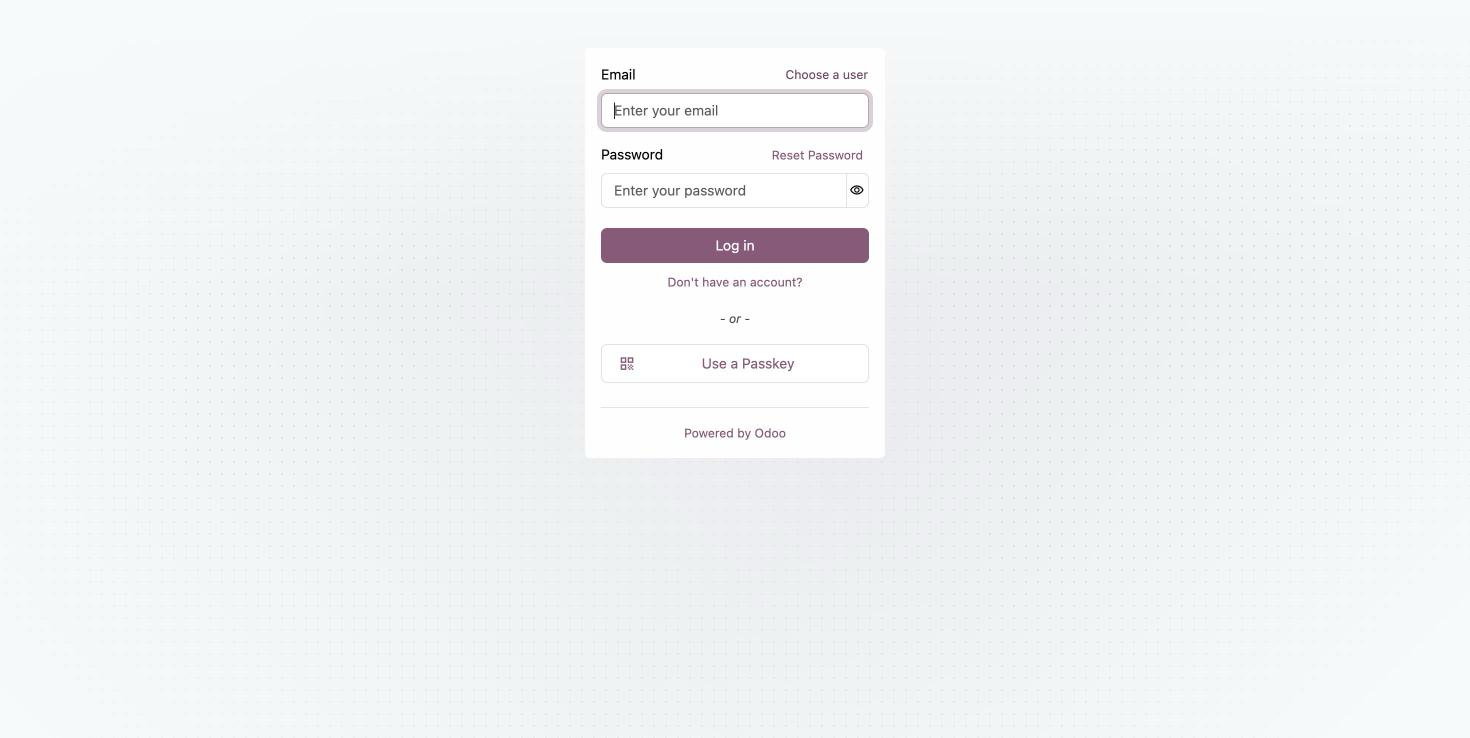
- Email:
-
Test your addon.
Sandboxes have no internet access, so features that call external services do not work.
Step 6: Manage Your Sandbox
You can manage only the sandboxes that you created.
| Button | What it does |
|---|---|
| Stop | Stops a Ready sandbox and keeps its data. |
| Start | Starts a Stopped sandbox again. |
| Delete | Permanently removes the sandbox and its data. |
A sandbox is deleted automatically 2 hours after it first becomes ready. Stopping it does not extend this time, so do not keep work that you need in a sandbox.
Troubleshooting
| Problem | What to do |
|---|---|
The status is Failed | Read the error under the status, fix the ZIP, delete the failed sandbox, and create a new one. |
| The error says the addon version cannot install | Select the Odoo version that matches your manifest. |
| The error mentions a missing dependency | Add the missing addon to the ZIP. If a Python package is missing, ask the development team. |
Quota reached | Delete one of your sandboxes, including failed ones. |
Server is full | Try again later. |
| Sign-in failed | Try again and check that you selected your IMOTIF account. |